
Figure 1.1
ID based Black/White list is an effective filter for messengers. You can either use the black list or the white list. Only IDs in the white list are allowed to use when white list is enabled. Enable black list means allow all IDs except those listed in the black list.
To make blocking work, you can change an existing blocking level or add a new one. Here we start this example from adding a new Black/White list(take ICQ for example).
As in Figure 1.1, add a new ICQ black list named "ICQ black list".
Press "Add" button , then you can choose the "Control Method" you need(White list control, only items in the white list are allowed. Black list control, allow all except those listed in the black list. wildcards(*,?) are supported.), take ICQ Black list for example. Set "Name" as "ICQ Black List Example". Input some ICQ IDs. As in Figure 1.2:
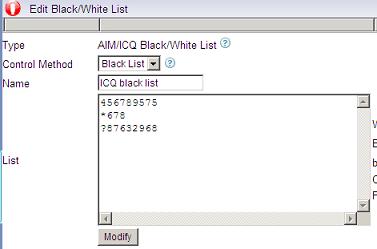
After your configuration, press "Modify" button to save. You will be asked to restart the monitoring service for new configuration to take effect. You may edit the black/white list by clicking "edit" in the black/white list settings.
As in Figure 2, add a blocking level named "Block ICQ list example" and check "Enable AIM/ICQ black/white list", choose "ICQ Black List Example" in the dropdown textbox.
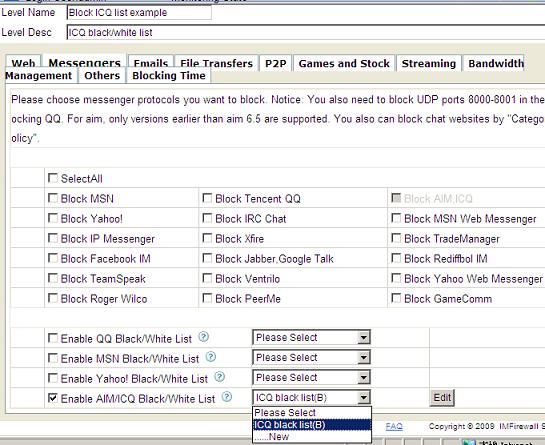
You need to set the blocking level for computers which you want to implement this blocking policy. As in Figure 3, choose the "Block ICQ list example" blocking level in the "Blocking Rules". Remember to click "Save" to save configurations.
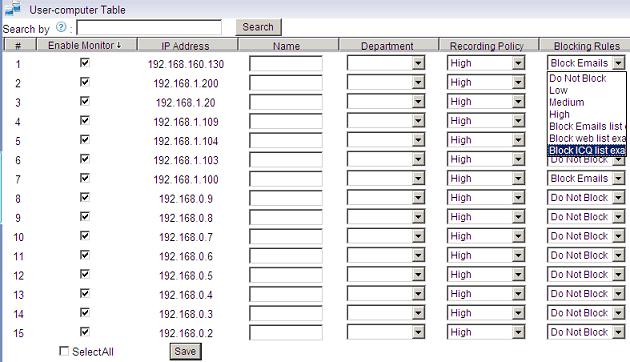
You will be asked to restart the monitoring service for new configuration to take effect.