Figure 1.1
Website white and black list configuration is an effective filter to block websites. You can either use the black list or the white list. Only websites in the white list are allowed to access when white list is enabled. Enable black list means allow all except those listed in the black list.
To make blocking work, you can change an existing blocking level or add a new one. Here we start this example from adding a website black/white list.
Click "Control Settings" -> "Black/White List Settings", choose "Website black/white list" type, then press "Add", as in Figure 1.
In the "Add Black/White List" page, you can set the details of a black/white list. As in Figure 2, choose a type, and fill in the name of this black/white list which will also appear in the blocking level settings. For example, choose "Black List" and input "Blocking Tencent Sports and Entertainment Websites" as the name, and input "sports.qq.*" and "ent.qq.*" in the "List".
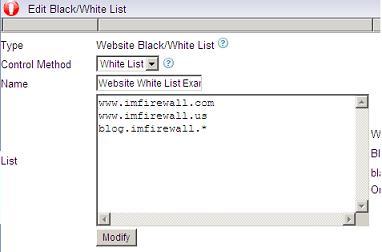
Notice: One website per line. Wildcards(*,?) are supported. Wildcard '*' means multi-Character while wildcard '?' means a single character.
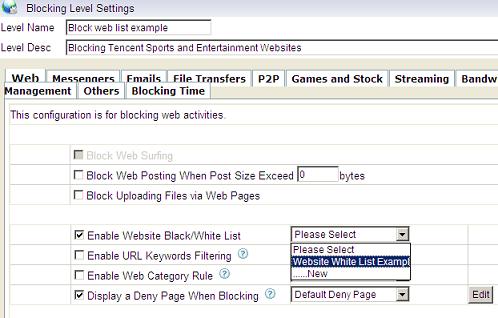
Taking blocking website as an example, in "Blocking Level Settings", as in Figure 2, check "Enable Website black/white list" and choose "Blocking Tencent Sports and Entertainment Websites" in the dropdown textbox.
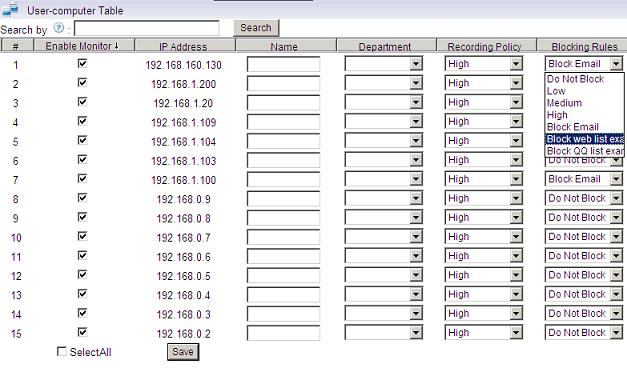
You need to set the blocking level for computers which you want to implement this blocking policy. As in Figure 4, choose the "Block website" blocking level in the "Blocking rules". Make sure that "Enable Monitor" are chosen for computers you want to block.
Click "Control Settings"->"Deny Page Settings", then click "New deny page". For example, use "Examples of deny page" as the "Deny Page Name". As in Figure 4, type some contents in the "Content" text.
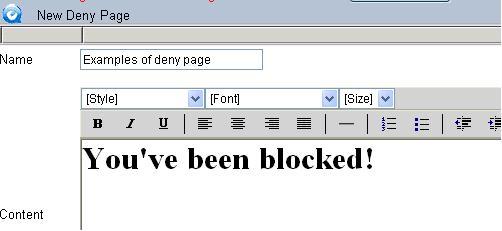
You still need to check "Display a deny page when being blocked" and choose a deny page in "Blocking Level Settings" as Figure 2.
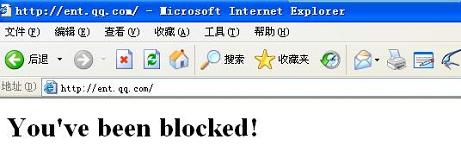
Figure 5 demonstrates an example of blocking with "Deny Page" choosed.
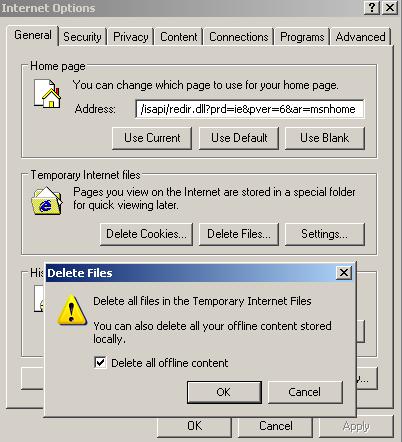
Most possibly because the browser cache. The browser is likely to retrieve a webpage from its cache if this page is visited before. Please clear the cache and try again. As shown in Fiure 6, clear the cache by click "Tools" -> "Internet Options" -> "Temporary Internet files" -> "Delete Files" -> "Delete all offline content".